
Uploading DCR Files Without a Specific Channel
A DCR can contain several separate audio channels, usually one for each courtroom microphone. If one channel contains noise or audio that should not be uploaded, use Liberty Player for Windows to identify it and create a new DCR containing every channel except that one.
Identify The Channel To Remove
Section titled “Identify The Channel To Remove”Changing the Playing channels controls only changes what you hear. It does not alter the original DCR.
-
Open The Original DCR
Section titled “Open The Original DCR”In Liberty Player, select File → Open, choose the original
.dcrfile, and open it. -
Find A Useful Part Of The Recording
Section titled “Find A Useful Part Of The Recording”Move to a point where the unwanted noise or audio is easy to recognize. Use the same short section while checking every channel.
-
Play One Channel At A Time
Section titled “Play One Channel At A Time”Under Playing channels, click 1, press Play, and listen for a few seconds. Repeat with channels 2, 3, and each remaining numbered channel.
If selecting a number leaves several channels active, click the small Channel Mix button next to All channels to turn mixed playback off. Then select the numbered channel again.
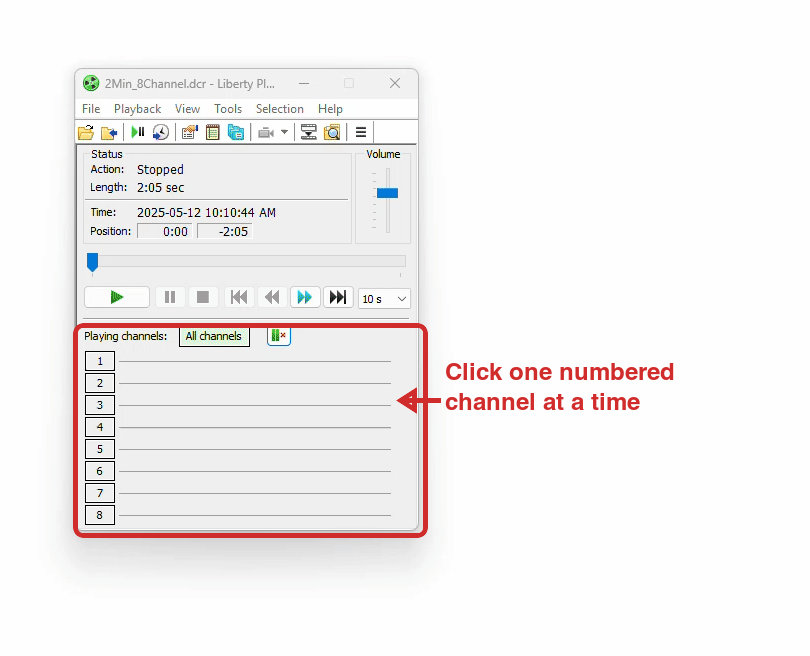
Listen to the same section on each numbered channel. -
Write Down The Unwanted Channel Number
Section titled “Write Down The Unwanted Channel Number”Confirm the unwanted audio is present on that channel and that the other channels contain audio you want to keep. Do not remove a channel if you are unsure.
Export A New DCR Without That Channel
Section titled “Export A New DCR Without That Channel”The export window lists channels to include, not channels to remove. Keep every good channel selected and clear only the unwanted one.
-
Open The Export Window
Section titled “Open The Export Window”Select File → Export.
-
Configure The New File
Section titled “Configure The New File”Select Export to hard disk, then set:
- File type:
DCR file (*.dcr) - Target file: A new filename, such as
hearing-without-channel-5.dcr - Selection:
Entire file
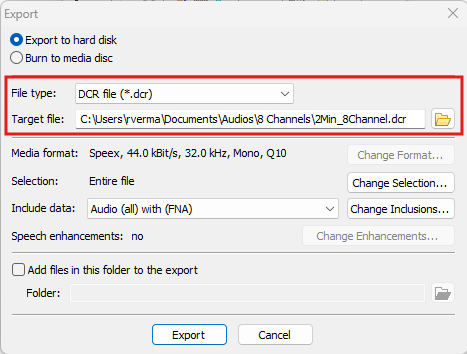
Choose DCR and save to a new filename. - File type:
-
Choose The Channels To Keep
Section titled “Choose The Channels To Keep”Click Change Inclusions.
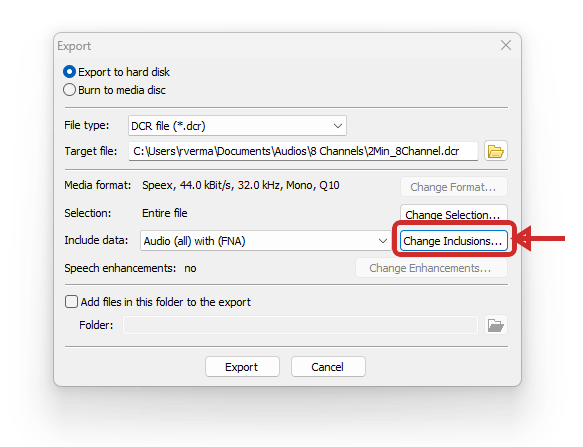
Click Change Inclusions to choose which channels the new DCR will contain. Make sure every audio channel is selected, then clear the checkbox beside only the channel you identified.
If the recording has more channels than the list shows, scroll through the list and confirm the remaining channels are selected.
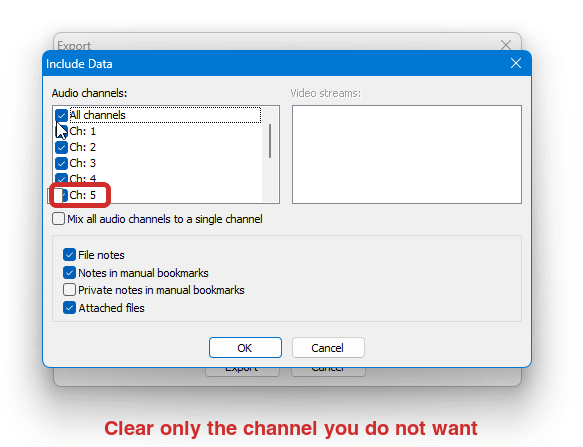
Example: To remove channel 5, clear channel 5 and leave all other channels selected. -
Export The File
Section titled “Export The File”Click OK. Back in the Export window, check the Include data summary, then click Export. Keep Liberty Player open until the export finishes.
-
Verify The New DCR
Section titled “Verify The New DCR”Select File → Open and open the newly exported file. Play the section you used for testing and confirm:
- The unwanted audio is gone
- The channels you wanted to keep still play
- The full recording duration is present
Upload The New File
Section titled “Upload The New File”When DraftTheRecord asks you to choose the recording, upload the newly exported DCR—not the original.