
DraftTheRecord App
The DraftTheRecord desktop app.
Setup takes about 30 to 45 minutes and you do it once. Work through the steps in order, because each one depends on the one before it.
Every step below appears in the video in the same order.
DraftTheRecord App
The DraftTheRecord desktop app.
WSL
A Windows component Docker needs.
Docker Desktop
The app that runs the offline services.
Transcription Engine
The AI model that turns your audio into text, while running on your machine.
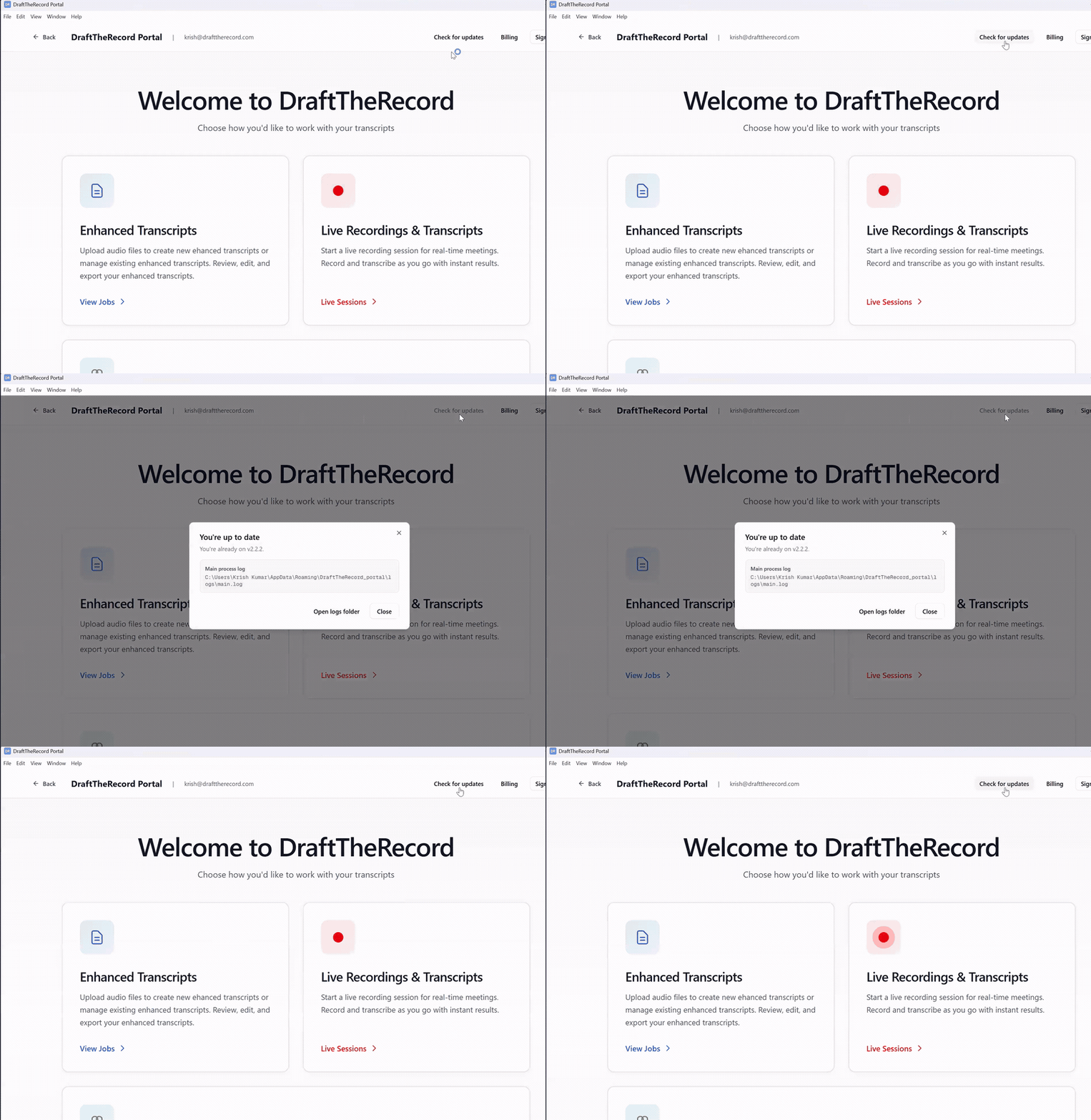
Open DraftTheRecord and click Check for updates. Install anything it offers before going further.
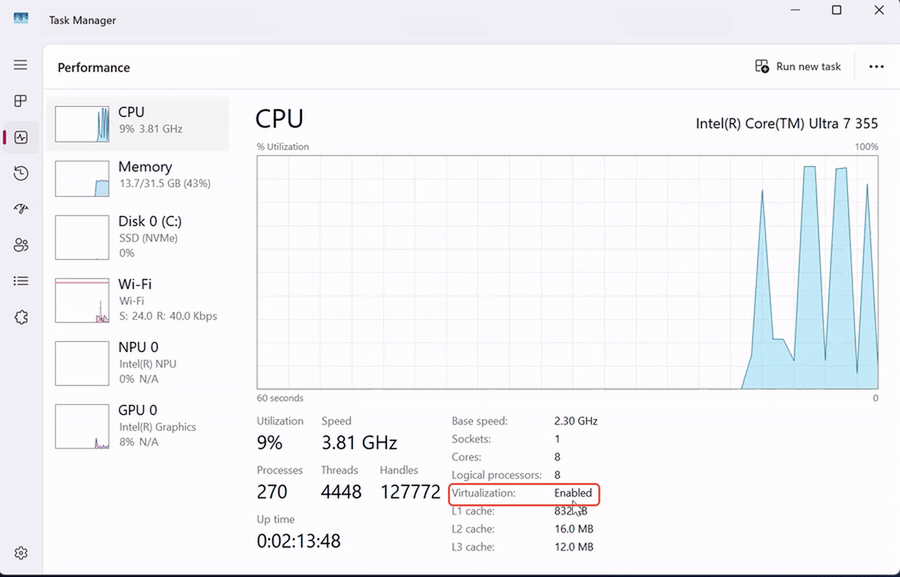
Open Task Manager, go to the Performance tab, and click CPU. Look at the bottom right. It must say Virtualization: Enabled.
Go to Settings → System → Power & battery → Power Mode. Set both Plugged in and On battery to Best Performance.
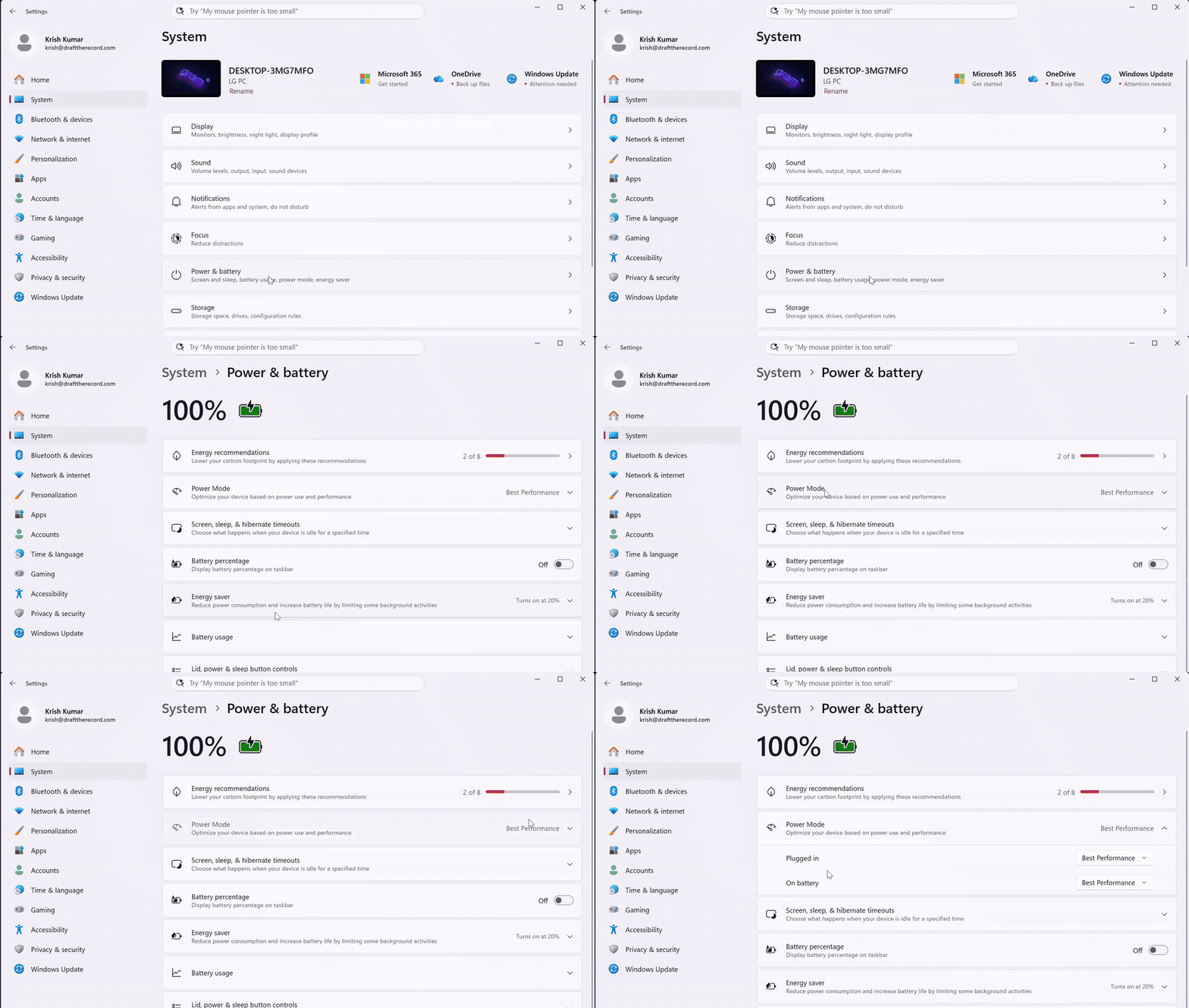
Offline transcription is demanding. On a balanced or power saving profile, the transcript may lag behind the speaker.
Open Windows PowerShell and run this:
wsl --update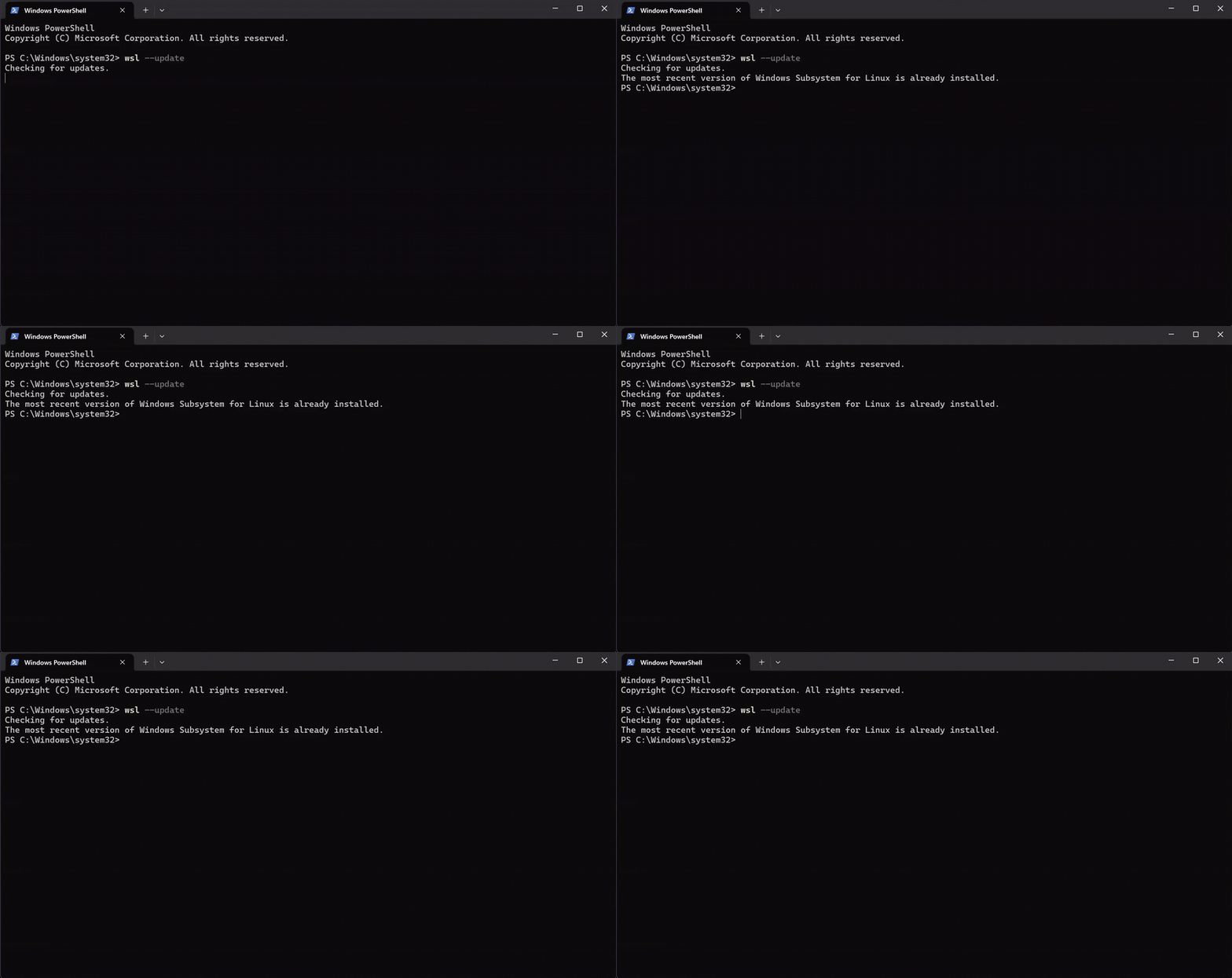
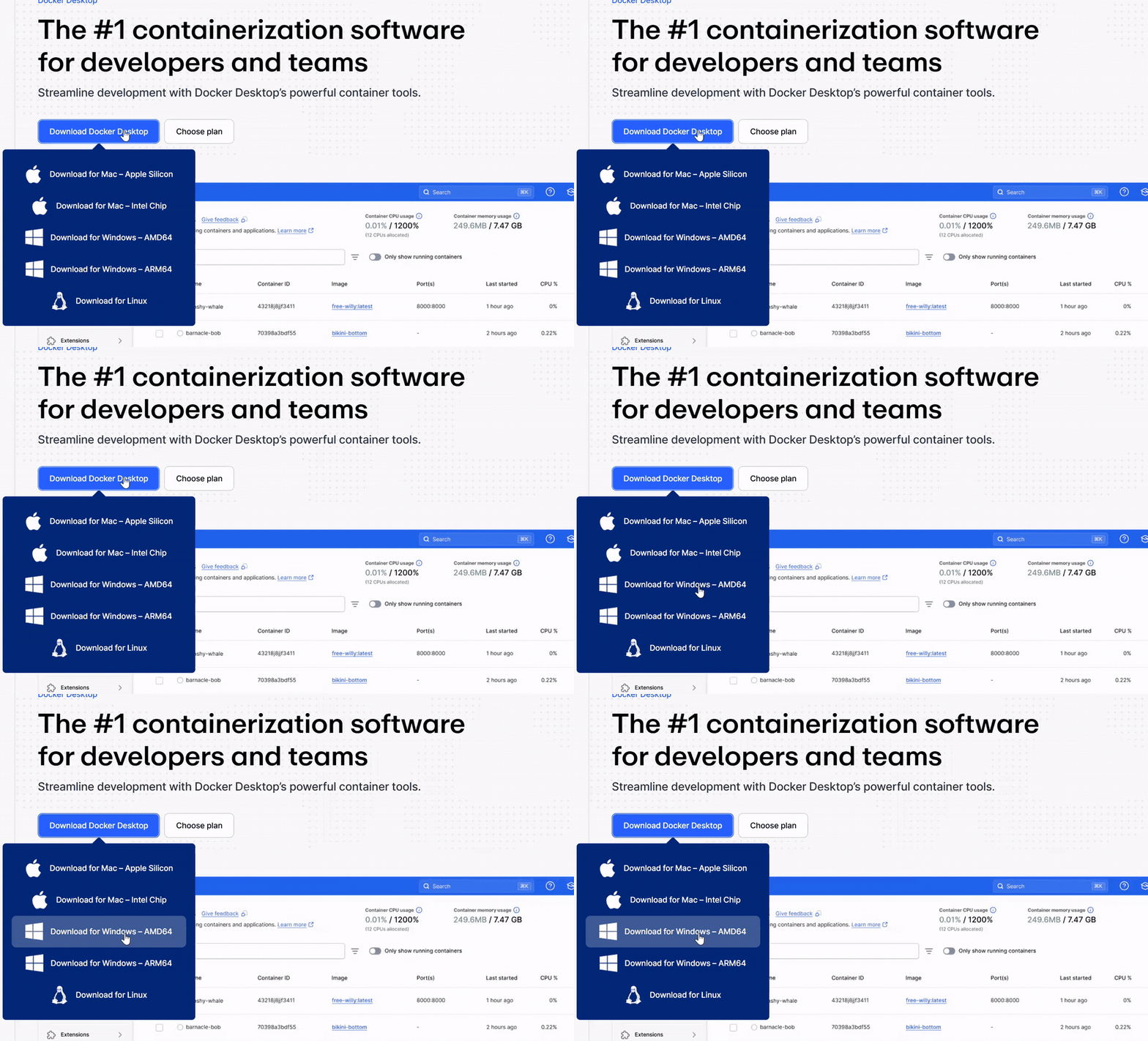
Go to docker.com/products/docker-desktop and choose Download for Windows, AMD64.
Choose ARM64 only if you have a Surface Pro X. Almost all Windows laptops are AMD64.
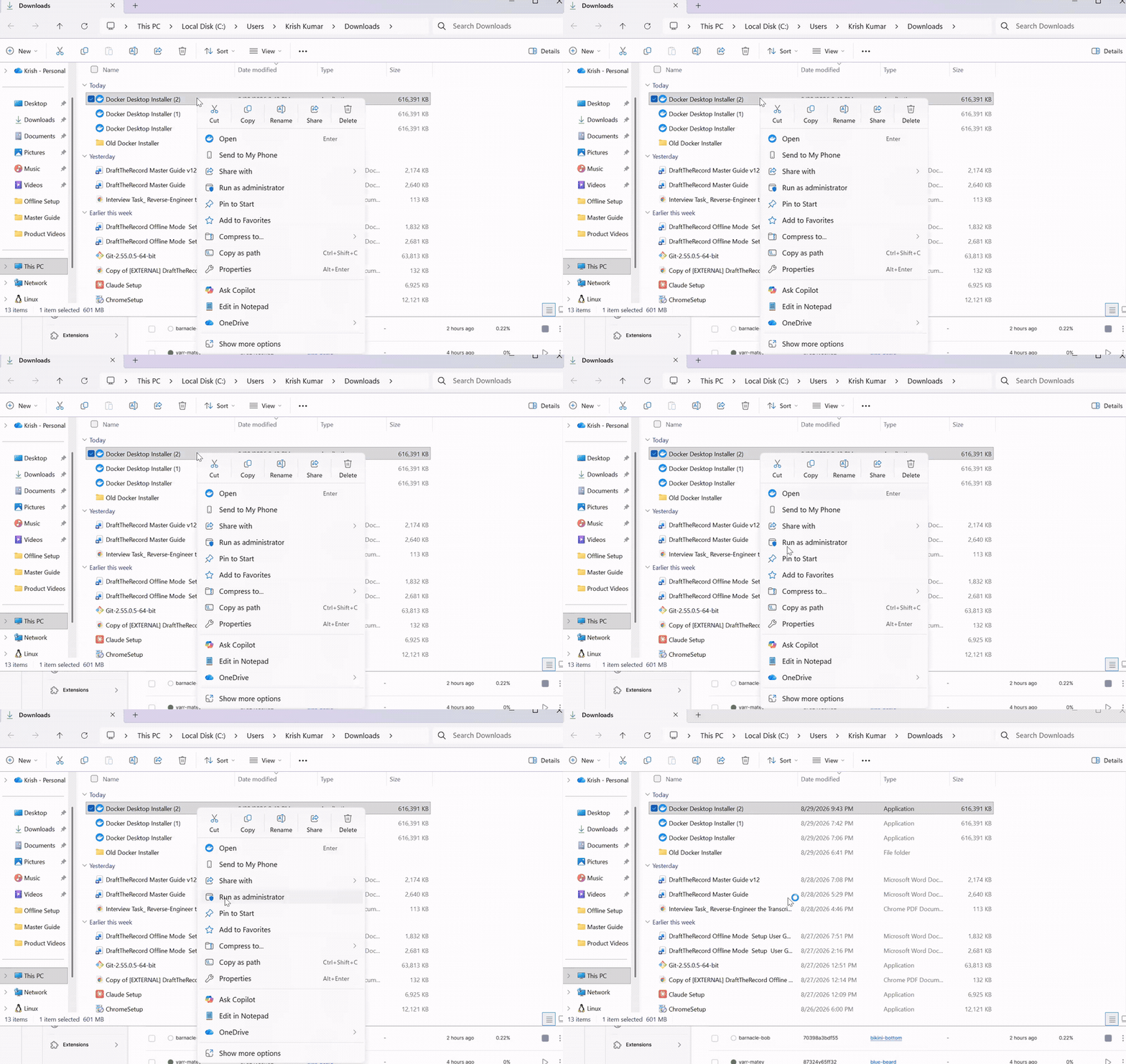
Then right-click the installer and choose Run as administrator.
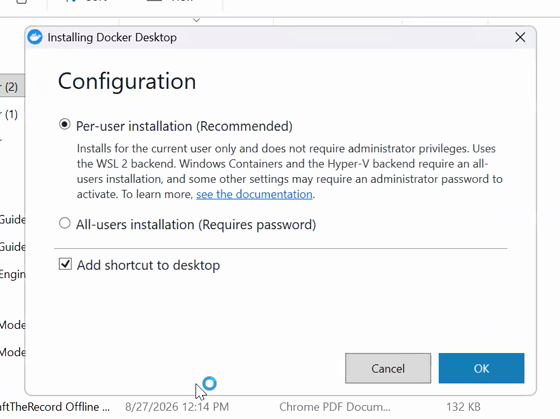
On the Configuration screen, select Per-user installation (Recommended) and tick Add shortcut to desktop.
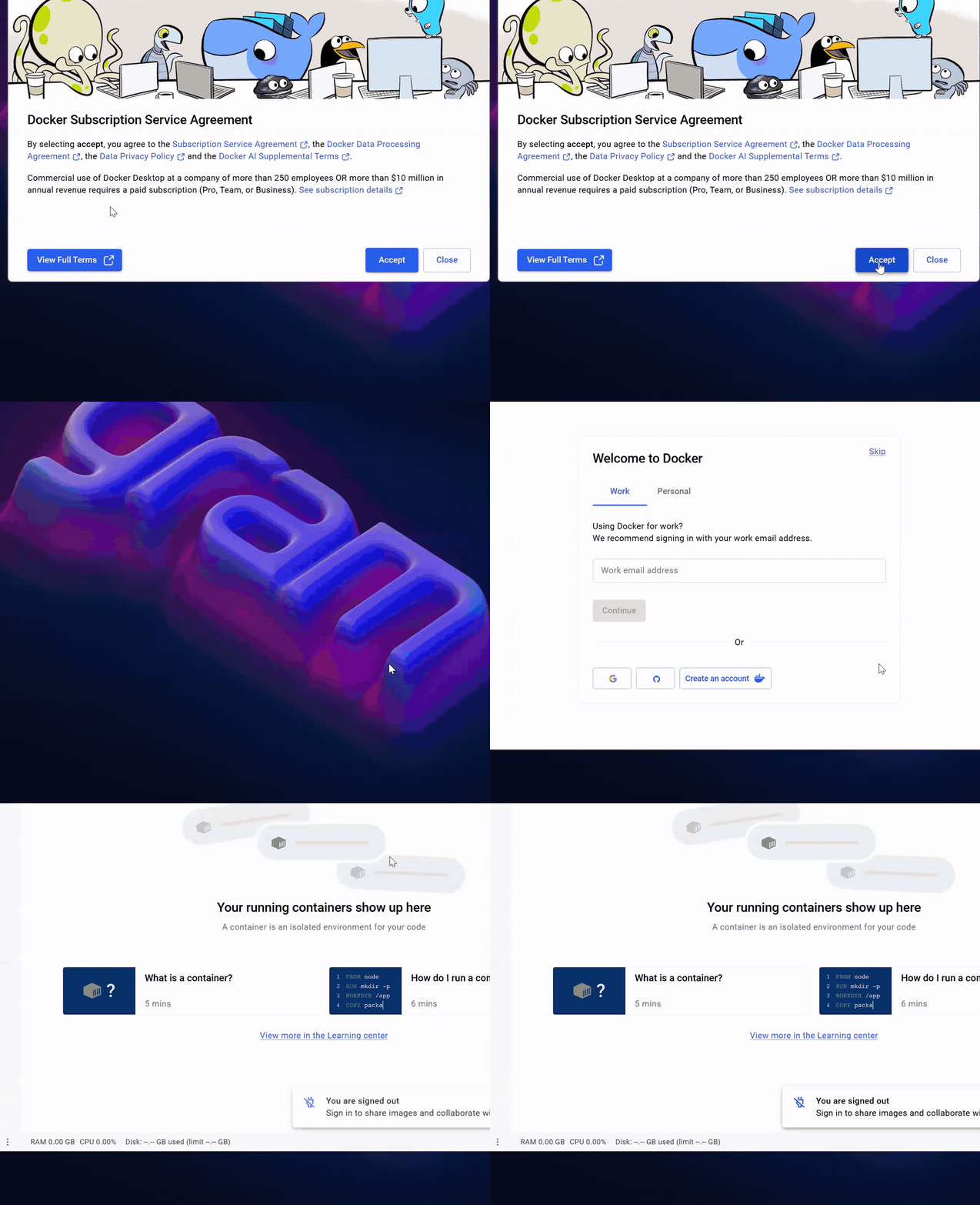
When Docker opens, Accept the license, then skip the sign-in. You do not need a Docker account.
This step is required. Docker will not work correctly until you restart.
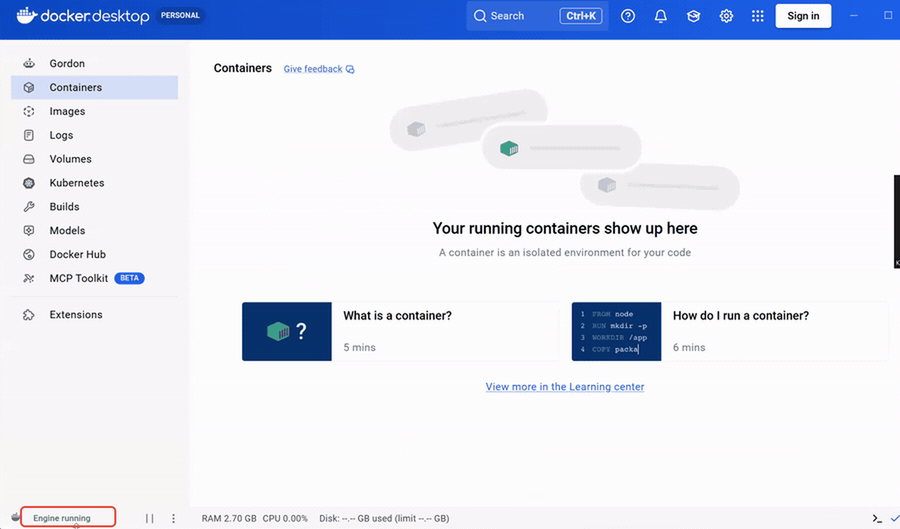
After restarting, open Docker Desktop and wait for Engine running in the bottom left corner.
Click the terminal icon (>_) in the bottom right of Docker Desktop. If Enable Docker terminal appears, click Enable.
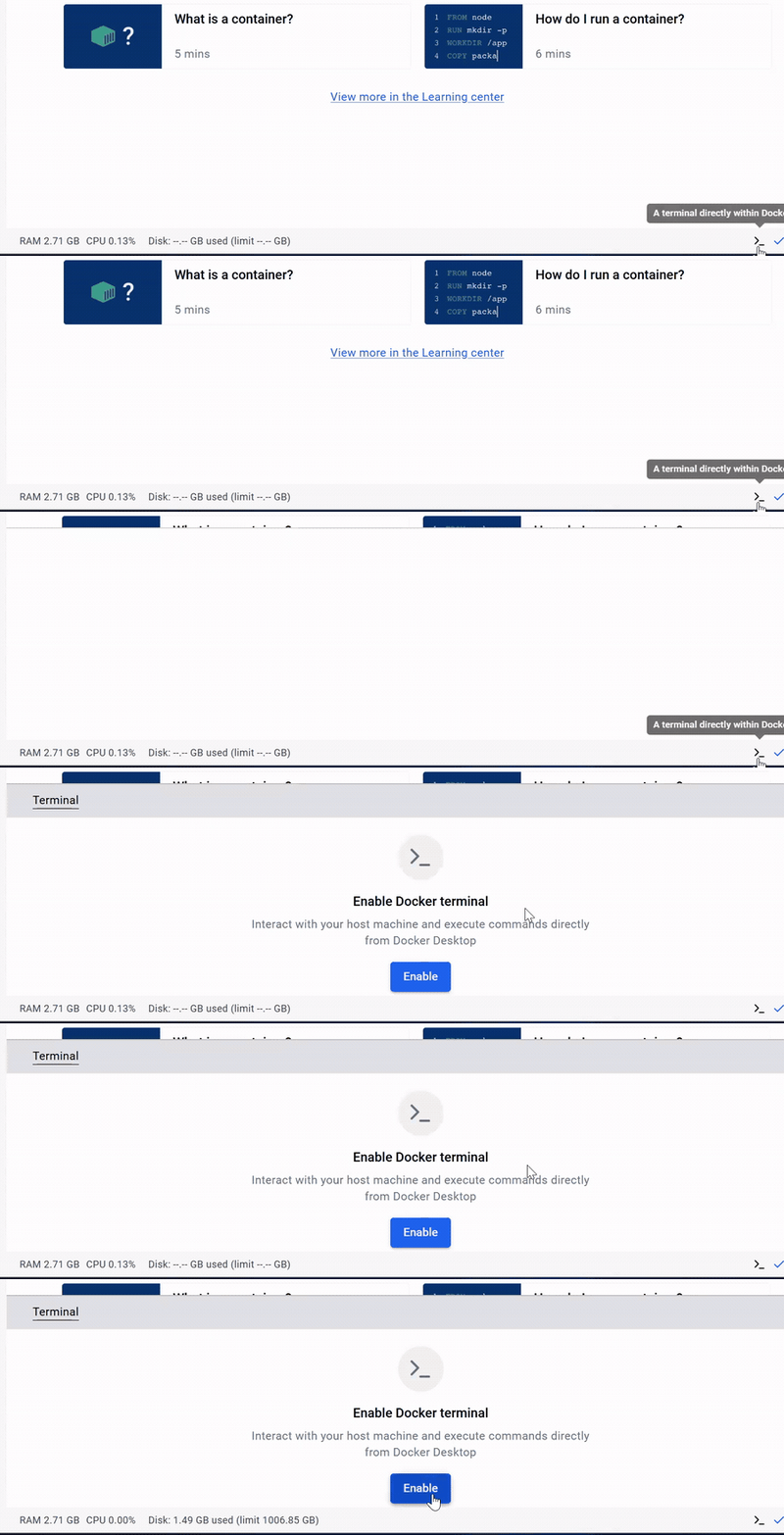
Click Copy and paste into the terminal, then press Enter.
cmd /c "curl.exe -L --fail --ssl-no-revoke https://direct-uploads-sterling.s3.us-east-1.amazonaws.com/asr-usage-0.3.0.tar.gz | docker load && curl.exe -L --fail --ssl-no-revoke -C - -o sm-rt-en-15.0.0.tar.gz https://direct-uploads-sterling.s3.us-east-1.amazonaws.com/sm-rt-en-15.0.0.tar.gz && docker load -i sm-rt-en-15.0.0.tar.gz"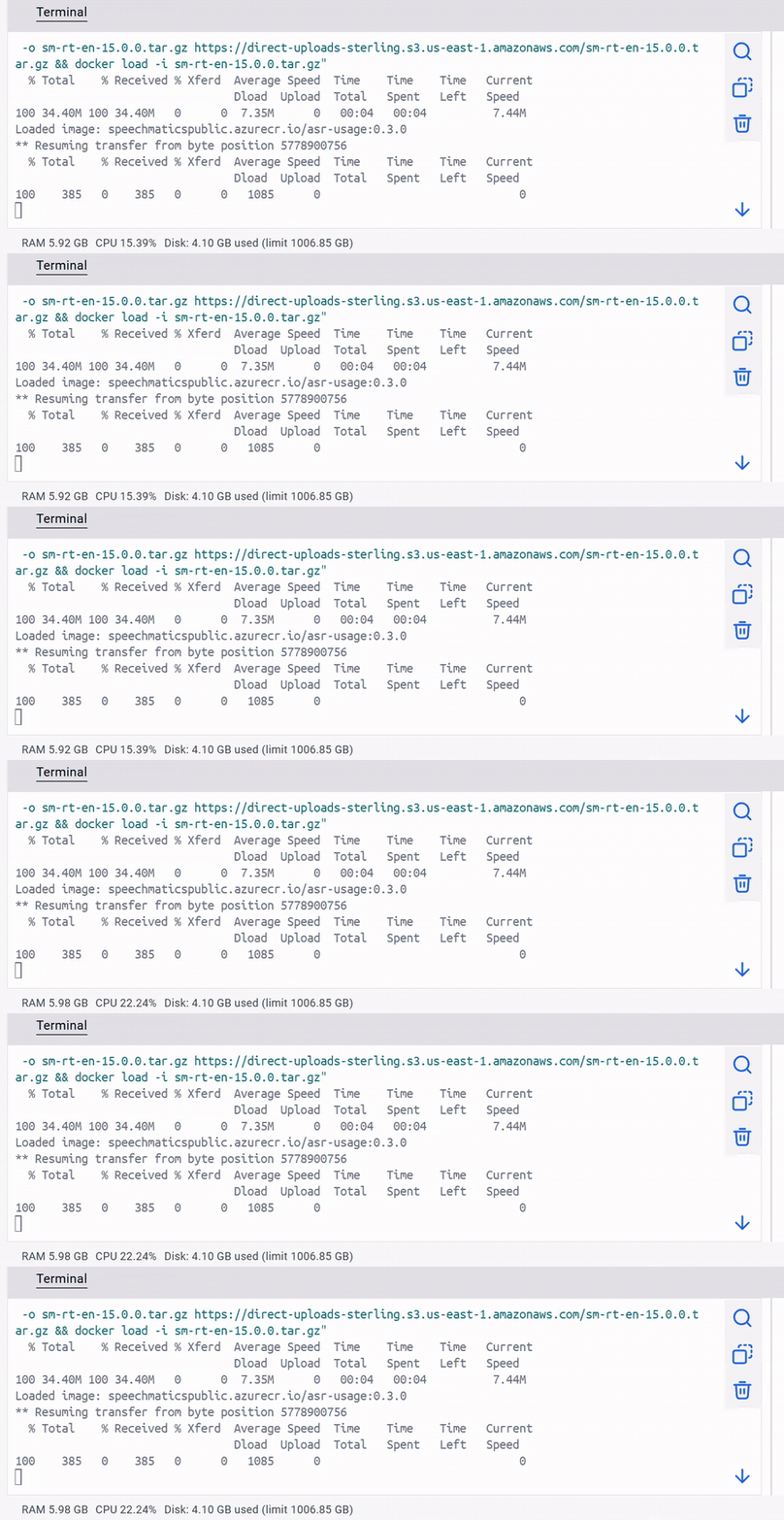
Even if you do not see anything loading on the screen, this step is still running in the background.
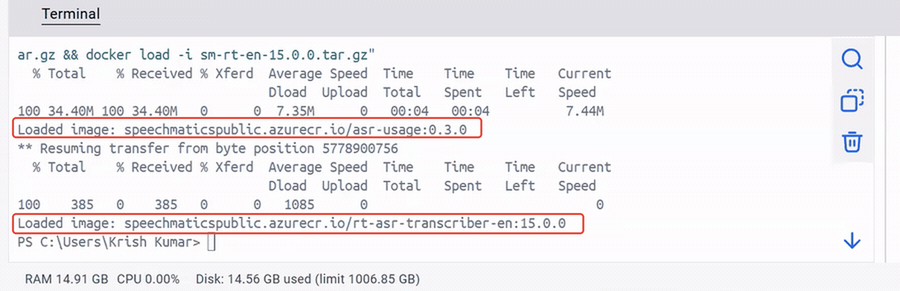
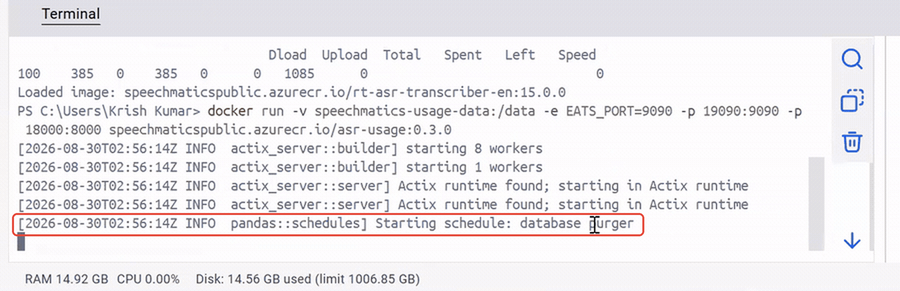
You are done with this step when two “Loaded image:” lines print and the terminal returns to an empty prompt. Both lines are boxed in red below.
In the same terminal, paste this and press Enter.
docker run -v speechmatics-usage-data:/data -e EATS_PORT=9090 -p 19090:9090 -p 18000:8000 speechmaticspublic.azurecr.io/asr-usage:0.3.0You are looking for the line boxed in red below, reading Starting schedule: database purger. Leave the window open. This terminal now belongs to the supporting service, so it keeps printing and never returns to a prompt.
This command is different for every machine, so you copy it directly out of the DraftTheRecord app.
In DraftTheRecord, start a live offline session and open the Start Local Recording window. Under ALTERNATIVE COMMAND-LINE SETUP, copy the command shown by clicking the Copy button.
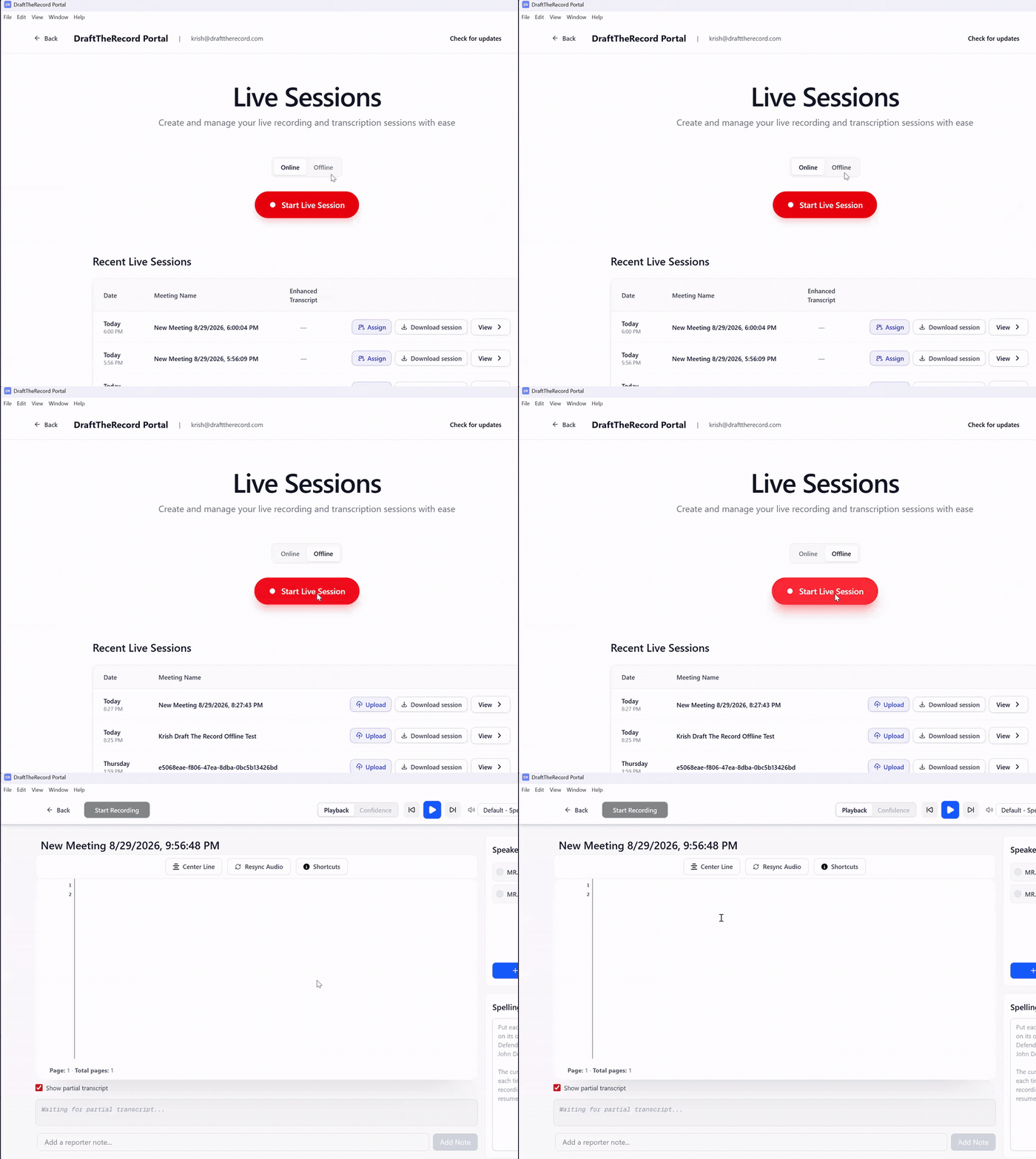
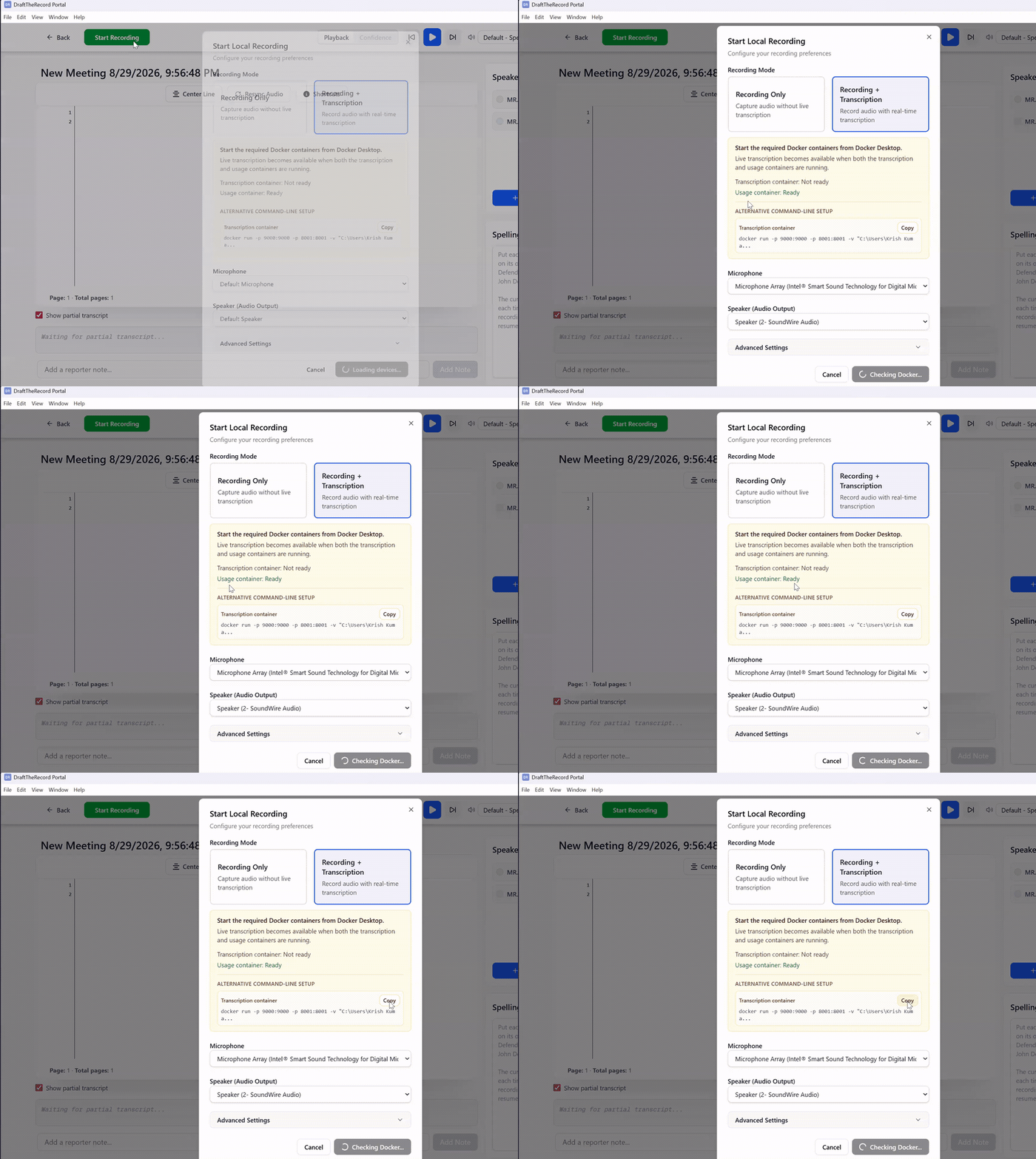
Open a new Docker Desktop Terminal window (+), paste your command and press Enter. Wait for it to report that it is listening.
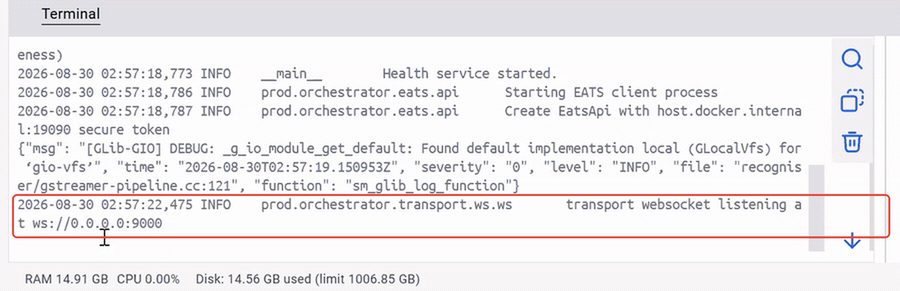
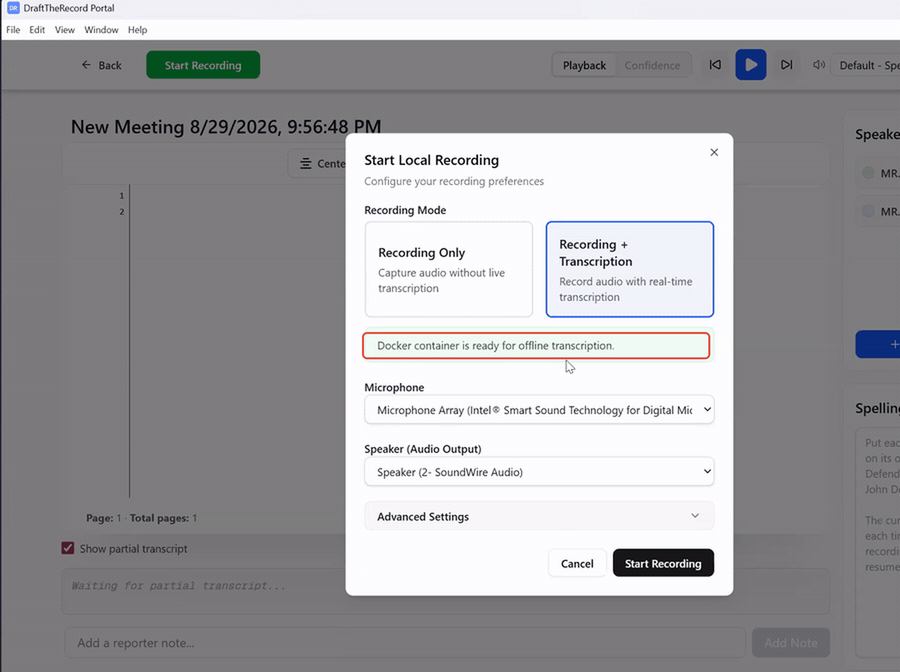
Back in the DraftTheRecord app, the Start Local Recording window should show the green message boxed in red below: Docker container is ready for offline transcription.
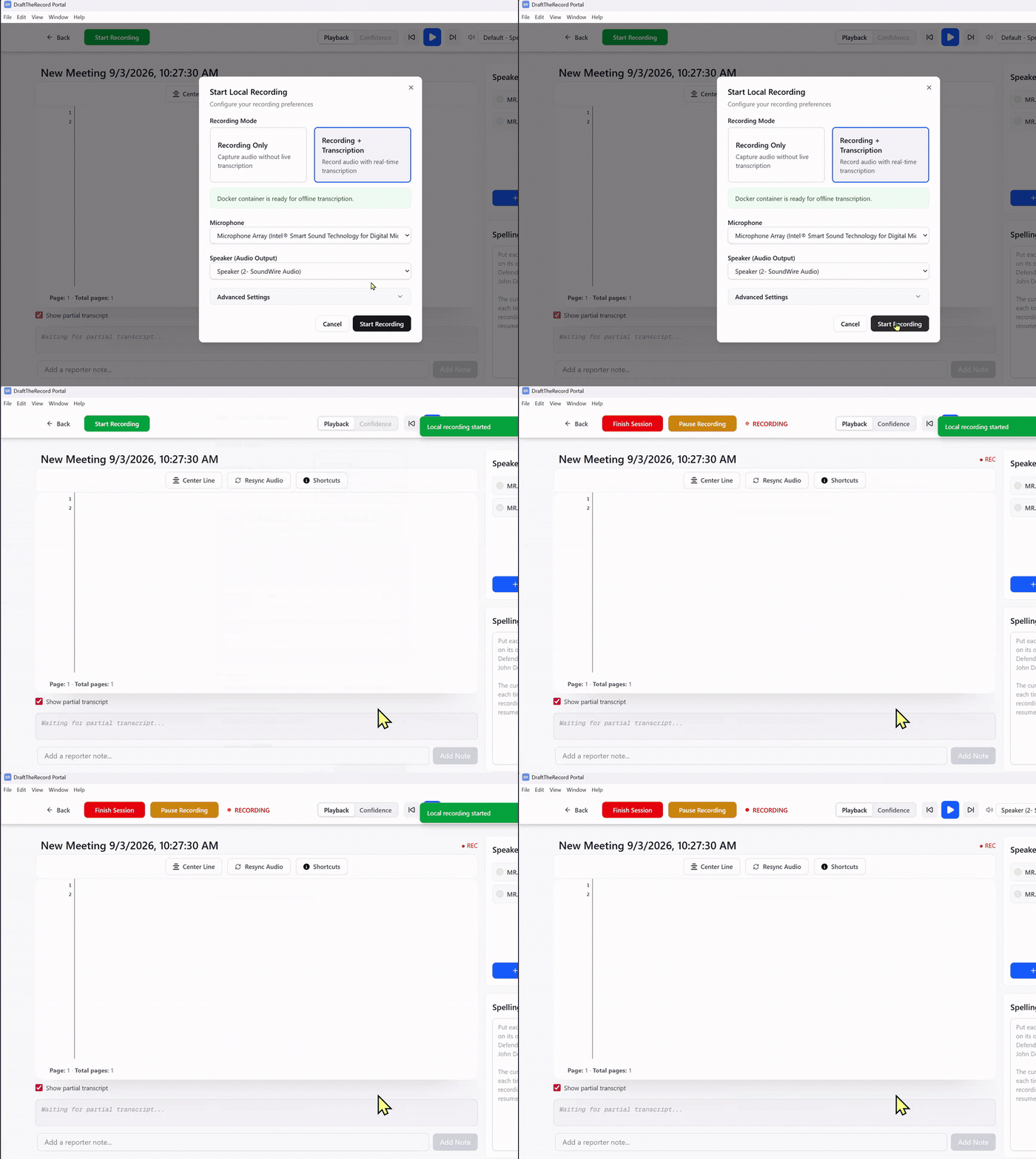
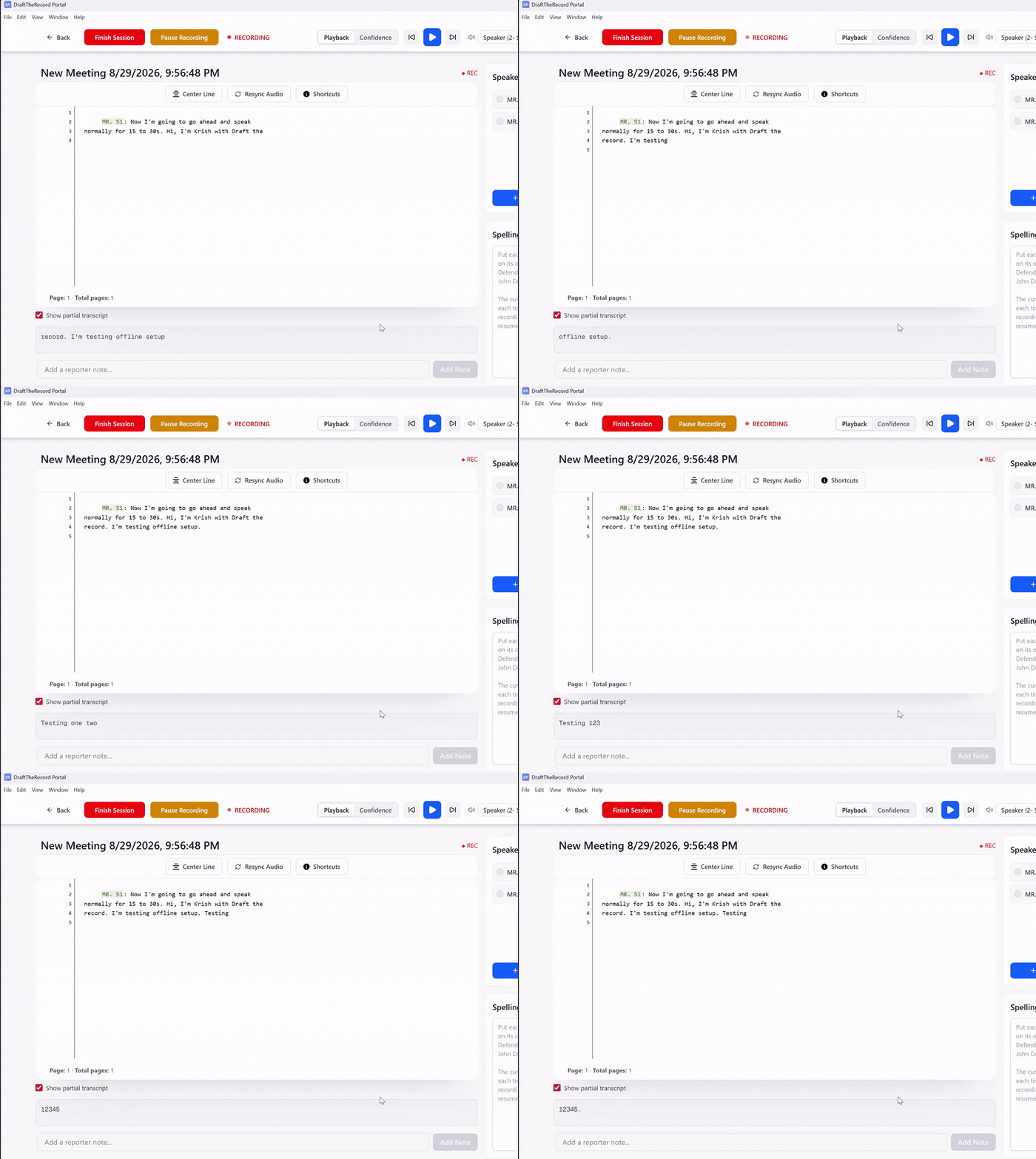
Record 15 to 30 seconds of your own voice and confirm live text appears.
From here on, the only page you need before a proceeding is What To Do Every Time.
An offline recording stays on your computer. Enhancing and assigning both happen in the cloud, so an offline job has to be uploaded first. It will not appear under Online until you do so.
Come out of the job itself and go back to the sessions list.
Find the session under Recent Live Sessions and press Upload on its row.
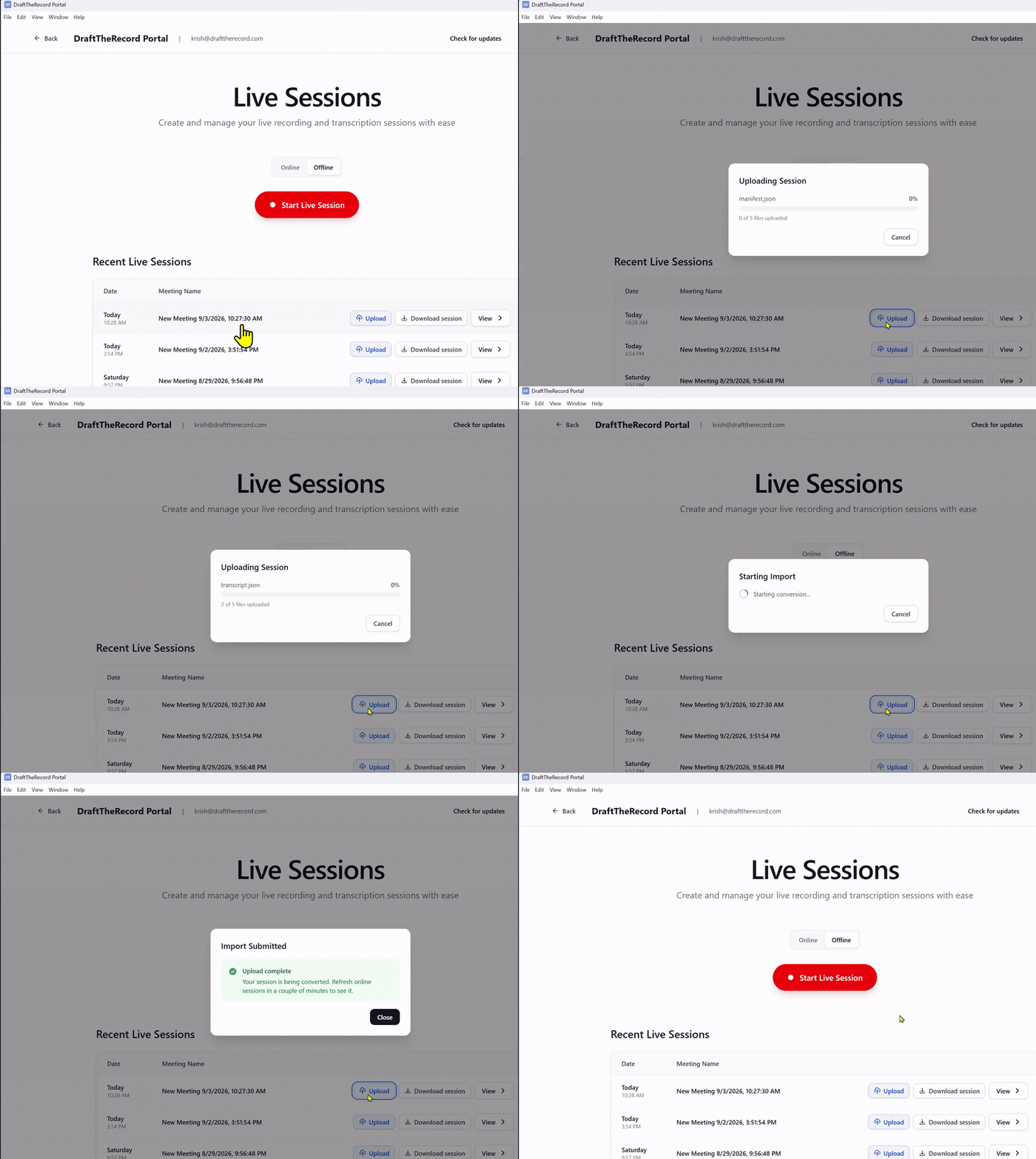
The upload takes a few minutes. When it finishes, the session appears in the Online tab.
From the Online tab you can create an enhanced transcript or assign the recording to another organization, exactly as you would with a session recorded online.