
Offline Troubleshooting
Check the big three first. Is virtualization enabled? Did you restart the computer after installing Docker? Is DraftTheRecord up to date?
Common Problems
Section titled “Common Problems”| Problem | Try This |
|---|---|
| No transcript appears during a session | In Docker Desktop, check that both DraftTheRecord containers are running (green). If not, press Play on both, then restart the recording. |
| DraftTheRecord says “Transcription container: Not ready” | Press Play on it in Docker Desktop. During first time setup, re-copy the transcription command from DraftTheRecord and run it again. |
| Docker is stuck on “Starting the Docker Engine…” | Quit Docker Desktop and reopen it. Still stuck? Restart the computer, then update Docker Desktop (whale menu, Check for updates). |
| Docker gives errors right after installation | Restart the computer. |
| “Virtualization support not detected” | Stop and contact support. Enabling it happens in the computer’s startup (BIOS) screen and varies by manufacturer. Support will walk you through it. |
| Transcript is slow | Lower Max Delay (seconds) under Advanced Settings. See below. |
| Transcript quality is poor | Turn off the microphone’s Audio enhancements. See below. |
| A command says “permission denied” or an install fails | Close the app, reopen it as Administrator (right-click, Run as administrator), and try again. |
| Nothing above helped | Restart the computer, then contact support. Please do not uninstall anything unless support suggests it. |
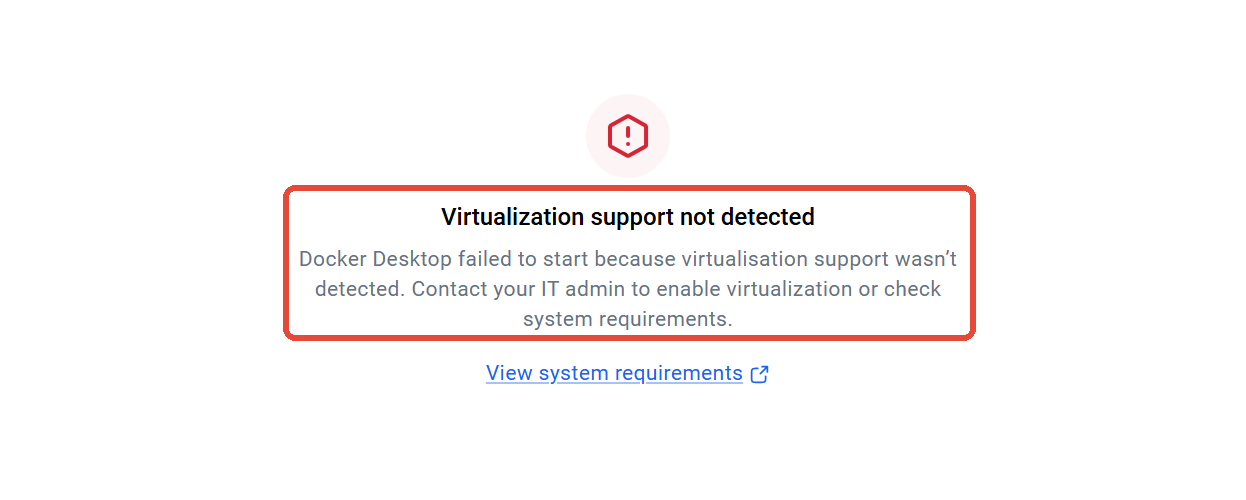 The virtualization error in Docker Desktop. If you see this, stop and contact support.
Making The Transcript Faster Or More Polished
Section titled “Making The Transcript Faster Or More Polished”Max Delay (seconds), under Advanced Settings in the “Start Local Recording” window, controls how long DraftTheRecord waits before finalizing each piece of the transcript. Lower values show text sooner. Higher values give the AI more time to polish each line. 3 is a good middle and is the value set during setup.
To change it, stop the recording, click Start Recording again, open Advanced Settings, and adjust the number.
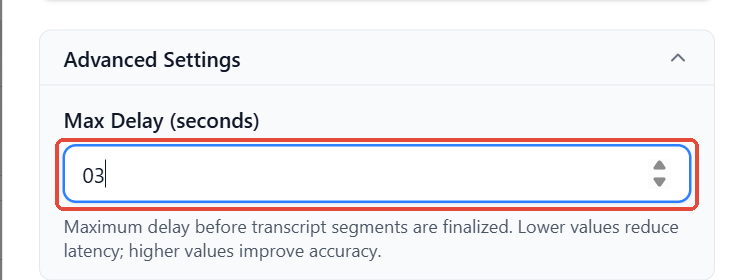 Advanced Settings in the Start Local Recording window. Max Delay set to 3.
If Transcription Quality Seems Off
Section titled “If Transcription Quality Seems Off”Windows sometimes applies microphone “enhancements” that hurt transcription. Turn them off:
- Open Windows Settings → System → Sound.
- Under Input, click the microphone you use.
- Switch Audio enhancements to Off.
Also load your Spelling List with case names, parties, and technical terms, one per line, before you go on the record. The list is applied every time you start recording or resume after a pause, so names come out spelled right in the first place.
Who To Contact
Section titled “Who To Contact”Email support@drafttherecord.com or call 734-881-3619.