
During Every Proceeding
Once the one time setup is done, this is all there is to it.
Watch The Routine
Section titled “Watch The Routine”The whole routine, before and after a proceeding, in two minutes.
Before The Proceeding
- Open the Docker Desktop app and wait for Engine running in the bottom left.
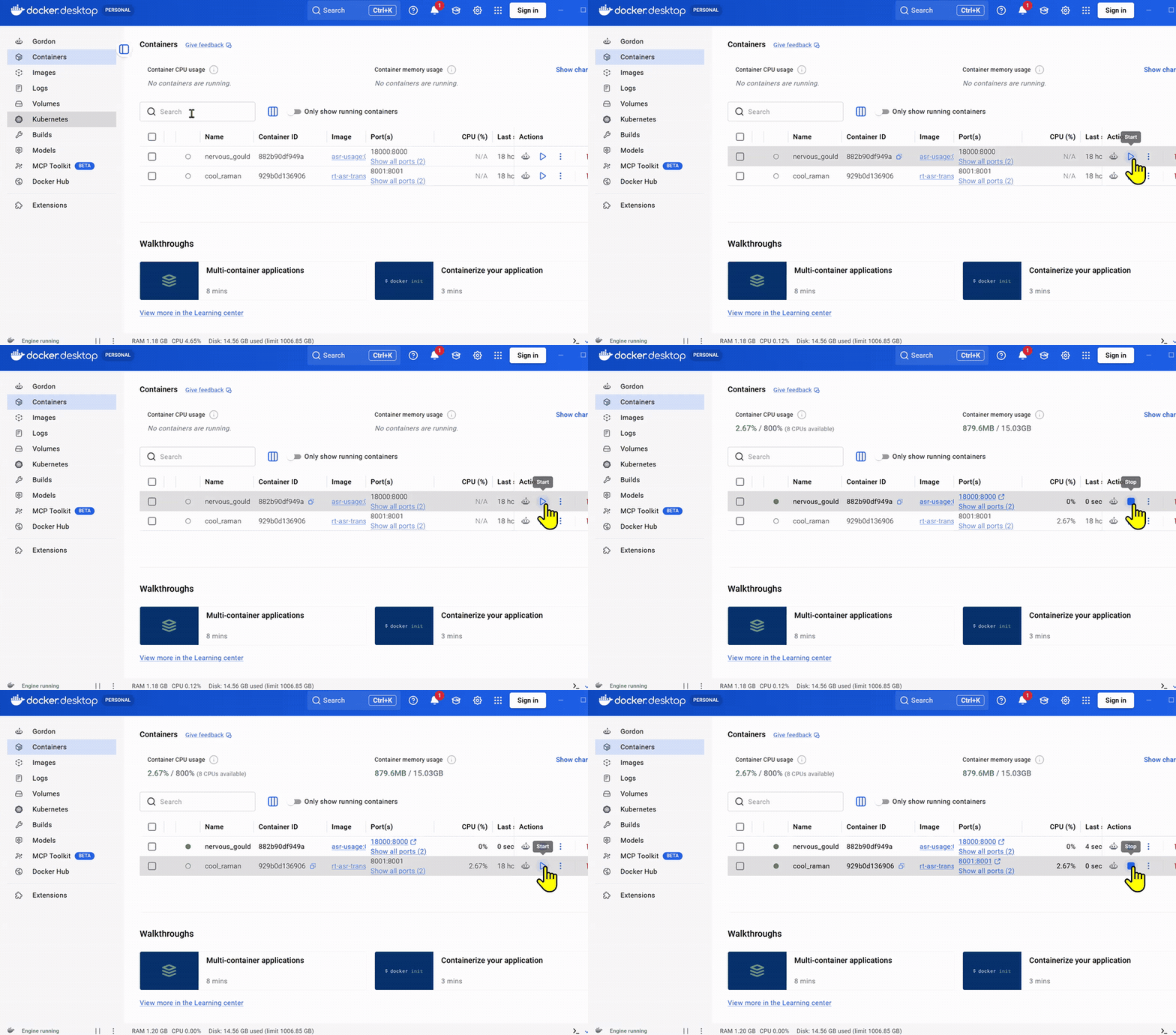
- Go to the Containers page and find the two DraftTheRecord containers.
- Press Play on both of them.
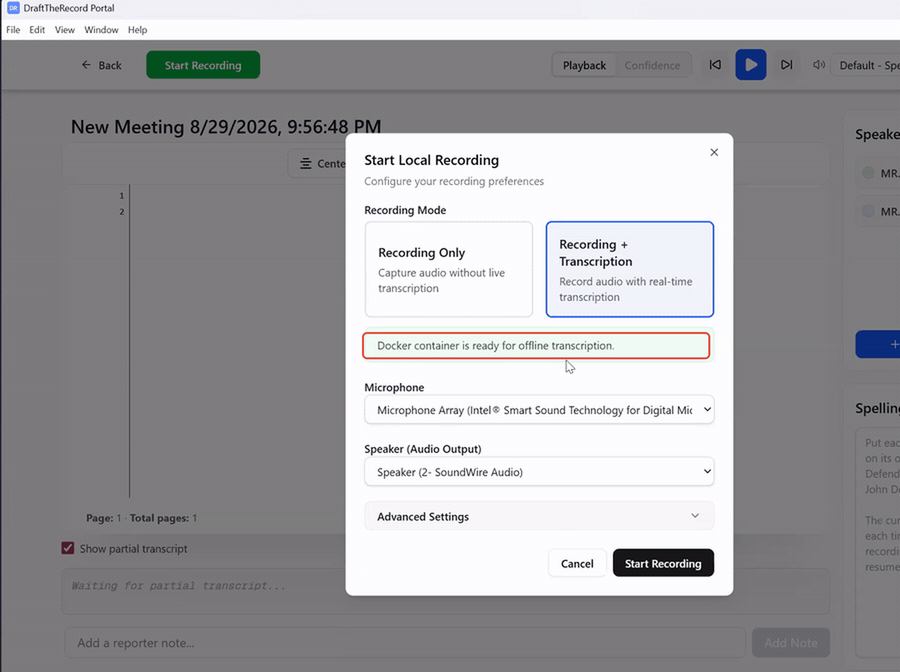
- In DraftTheRecord, start your offline session.
- Confirm live text is appearing, then go on the record.
After The Proceeding
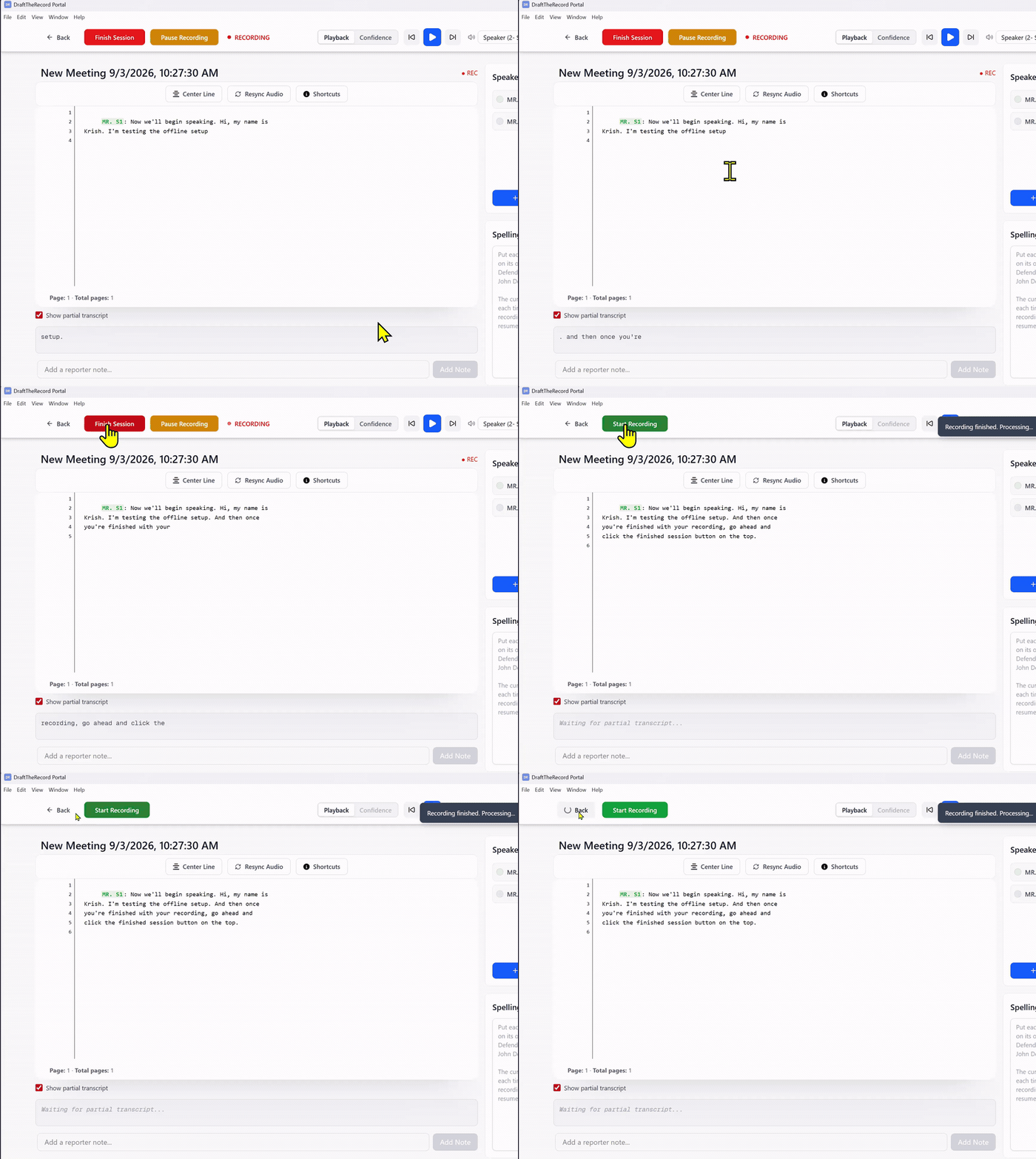
- End the session in DraftTheRecord with Finish Session.
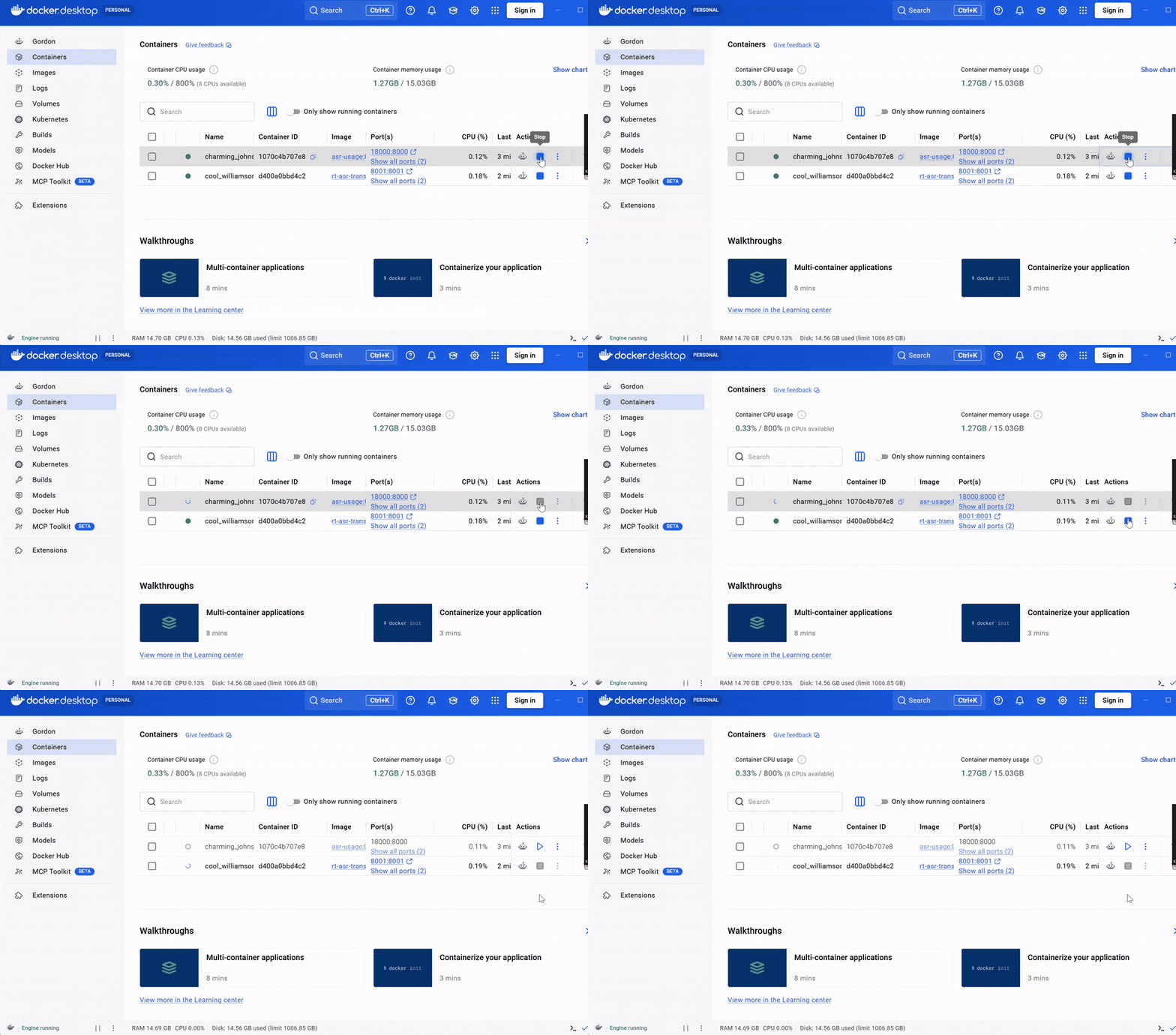
- In Docker Desktop, press Stop on both containers.
Start Early
Section titled “Start Early”Start offline mode before the proceeding and confirm live text is appearing before you go on the record.
Which Two Containers Are Ours
Section titled “Which Two Containers Are Ours”The container names are random, something like “strange_bassi” or “clever_shaw”, so do not look for the product name in the Name column.
Identify them by the Image column instead. One image is asr-usage and the other is rt-asr-transcriber. Those two are the DraftTheRecord services. Press Play or Stop on both, always as a pair.
To Enhance Or Assign The Recording
Section titled “To Enhance Or Assign The Recording”An offline recording stays on your computer until you upload it. The steps are on the setup page.
If Something Looks Wrong
Section titled “If Something Looks Wrong”Check these in order before assuming the setup broke:
- Engine Running: Docker Desktop must say Engine running in the bottom left. If it does not, give it a minute, then restart Docker Desktop.
- Both Containers: Both containers need to be running. A single stopped container is the most common cause of no transcript.
- Test First: Record 15 seconds of your own voice and confirm text appears.
Anything else is on the Troubleshooting page.